User Overview Report
How to create and export a User Overview Report.
Written By Jessaca Smith
Last updated About 2 months ago
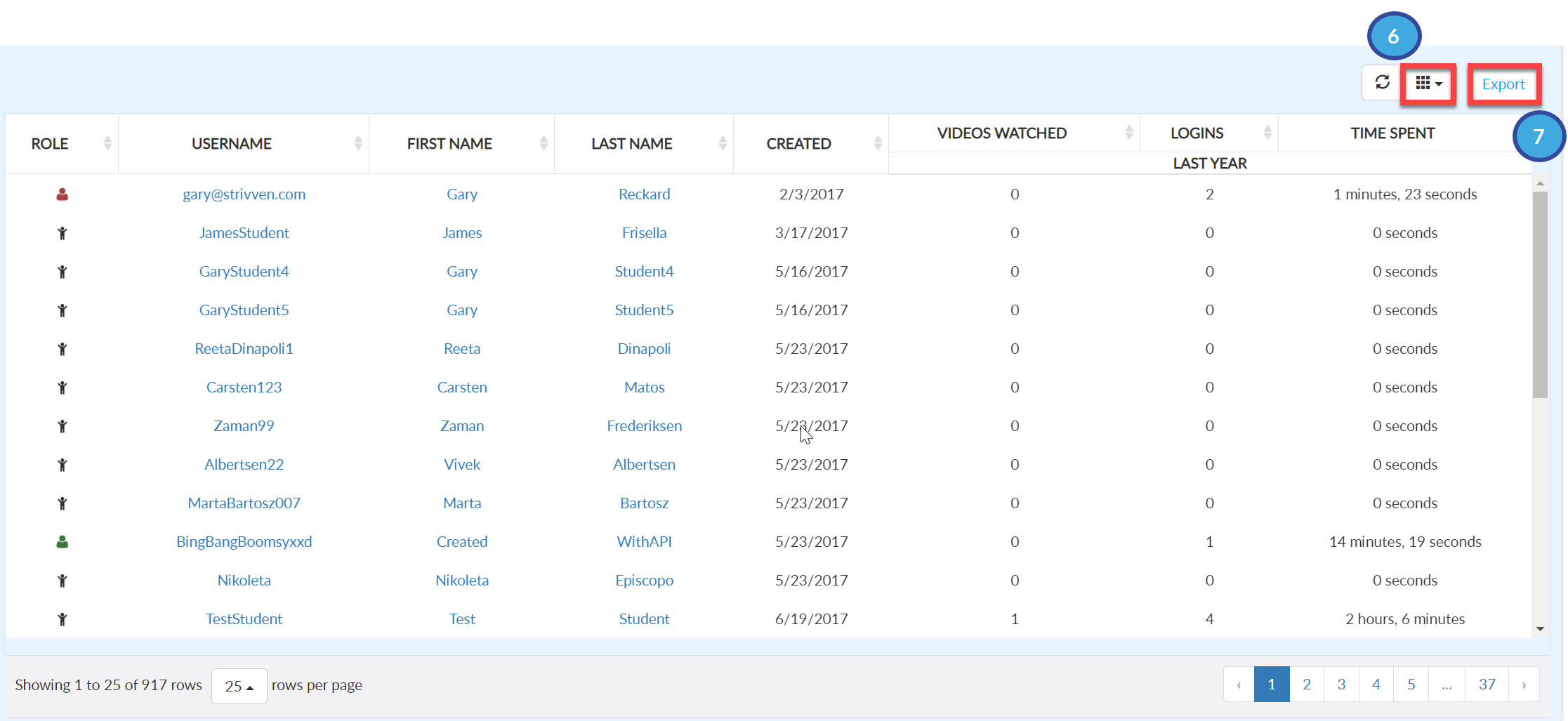
One of the Reports available is a User Overview. This report provides the following information for the entire license, a single group, or multiple groups within the selected license:
User's Role
Username
Unique ID
First and Last Name
School
Grade
Graduation Year
Date the account was created
Date of the Last Activity
Number of Videos Watched
Number of Assessments Completed
Career Journal Entries
Number of Logins
Time Spent using the platform
Create a User Overview Report
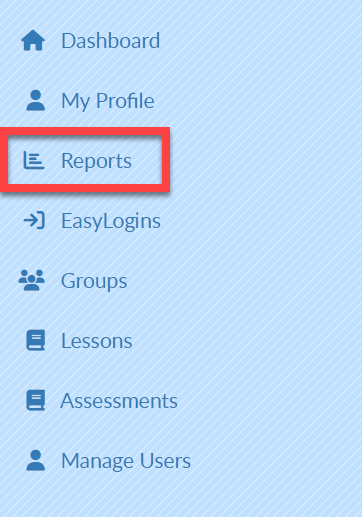
Select Reports on the left menu bar.
Select the Reports Tab.
From the Report drop-down menu, select User Overview.
Complete the Search Filters as desired.
Select Search.
Your report will populate at the bottom of the screen.
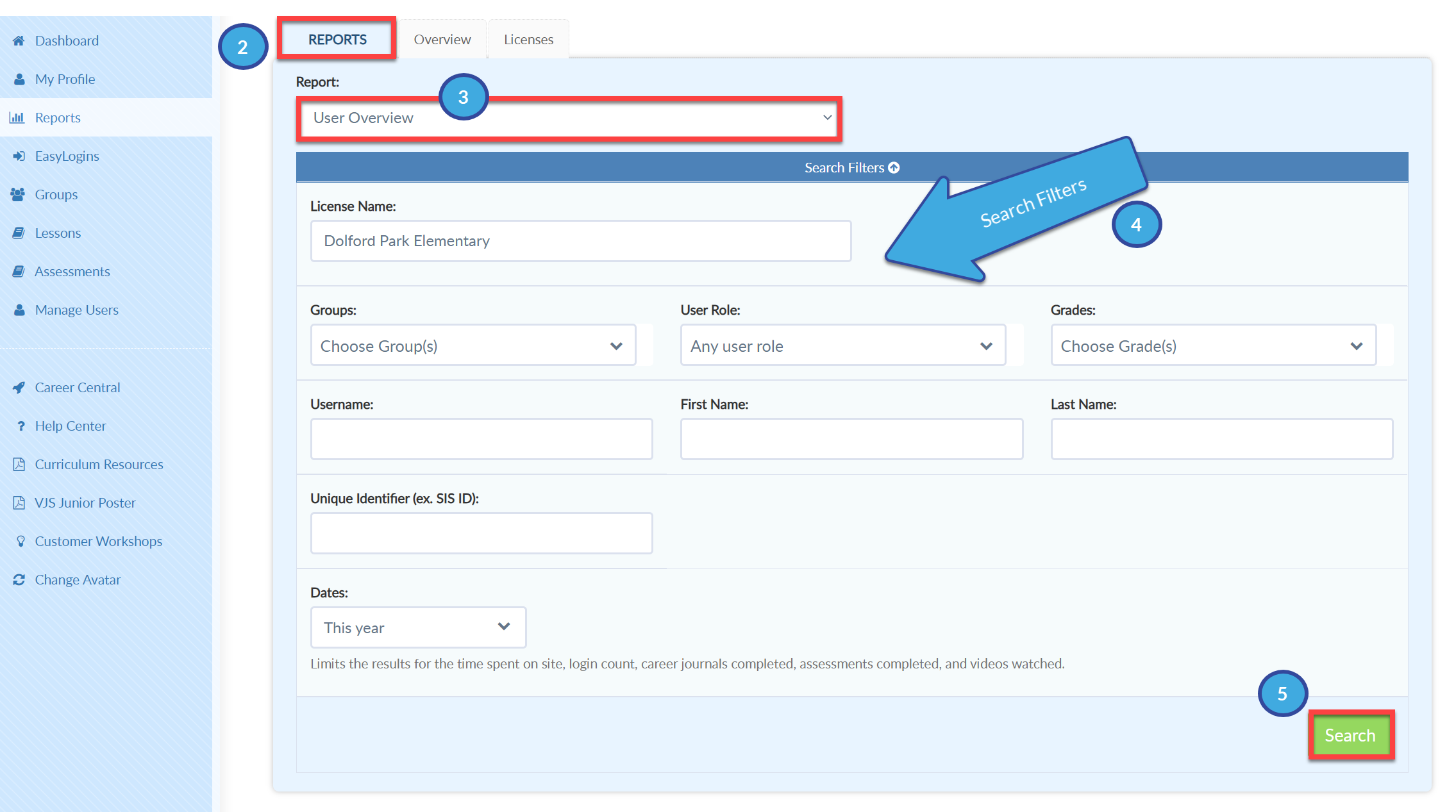
If you have access to multiple licenses, be sure to select the desired license(s) from the License Name drop-down in the Search Filters.
Select the grid icon to add or remove fields from the report.
Select Export to create an Excel file of this report.