Delete a User
A step-by-step guide for how to delete a single user or multiple users at one time.
Written By Reshma Kader
Last updated About 2 months ago
Delete a User
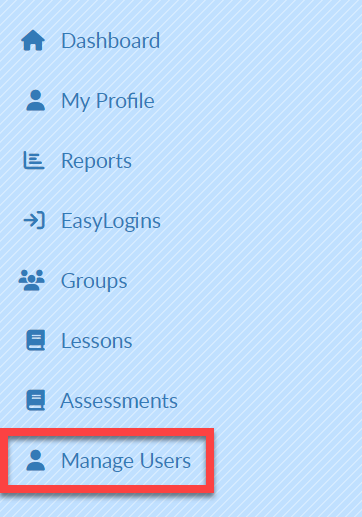
Select Manage Users on the left menu bar.
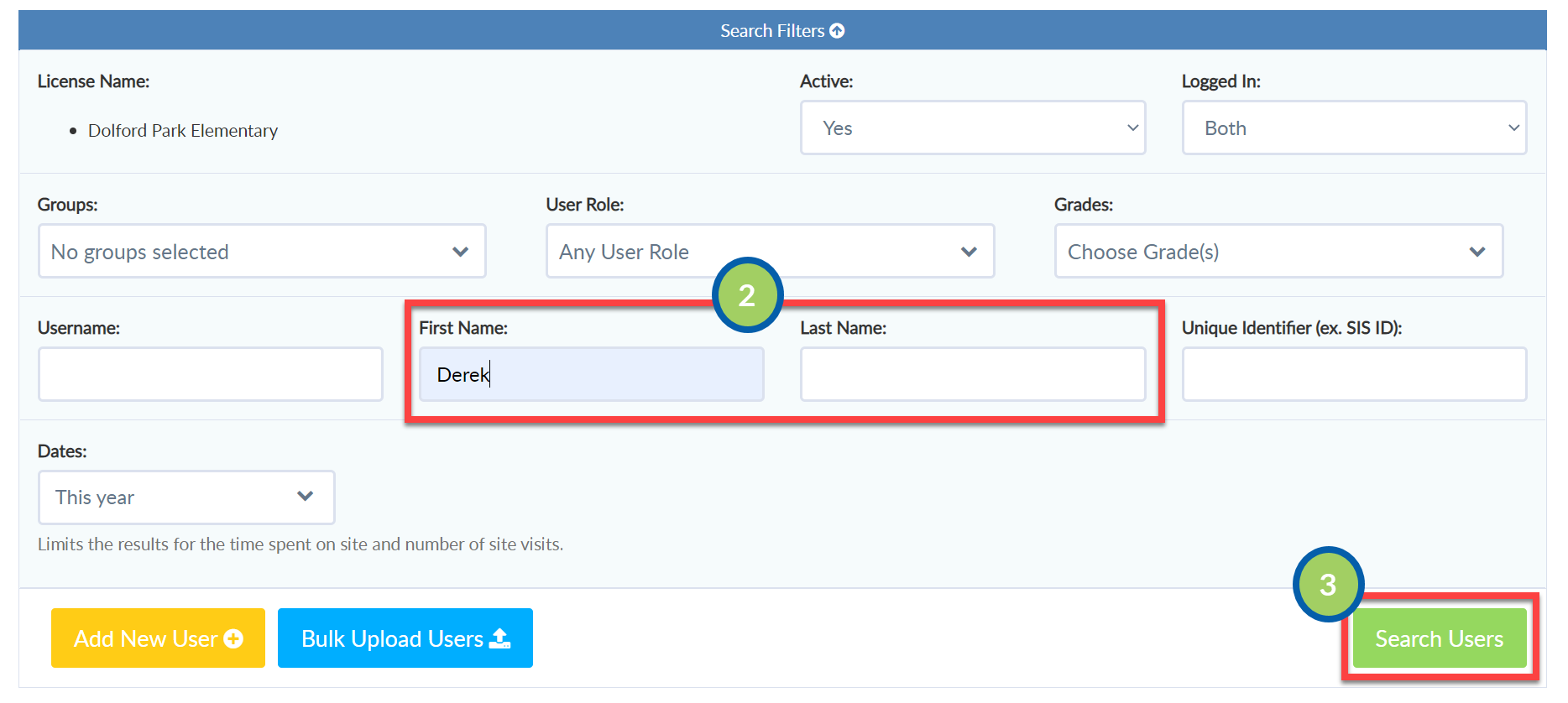
Type the name of the user in the search box(es).
Note: you can leave the filters blank to view a list of all users. This is helpful if you need to delete more than one user.Select Search Users.
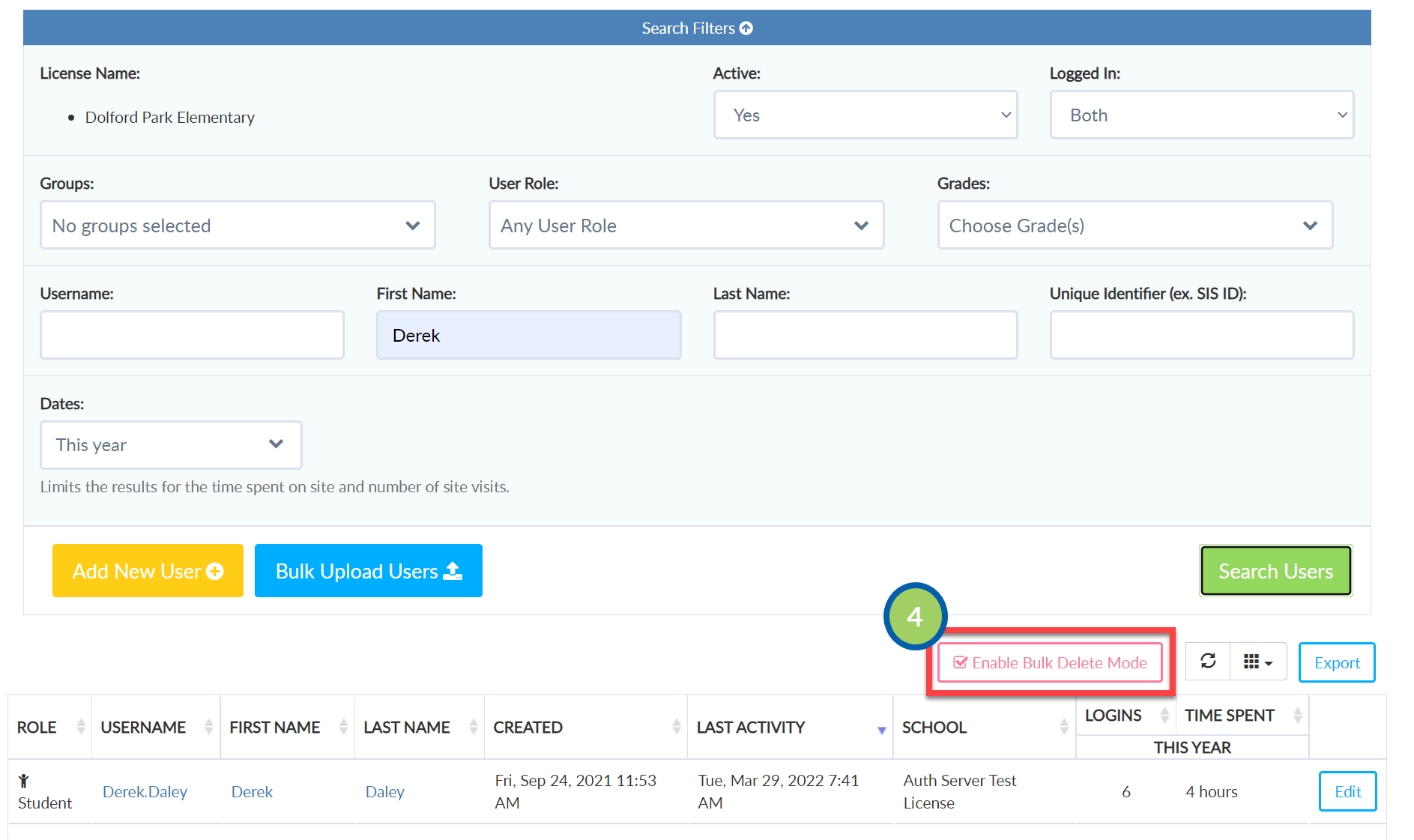
Select the Enable Bulk Delete Mode button.
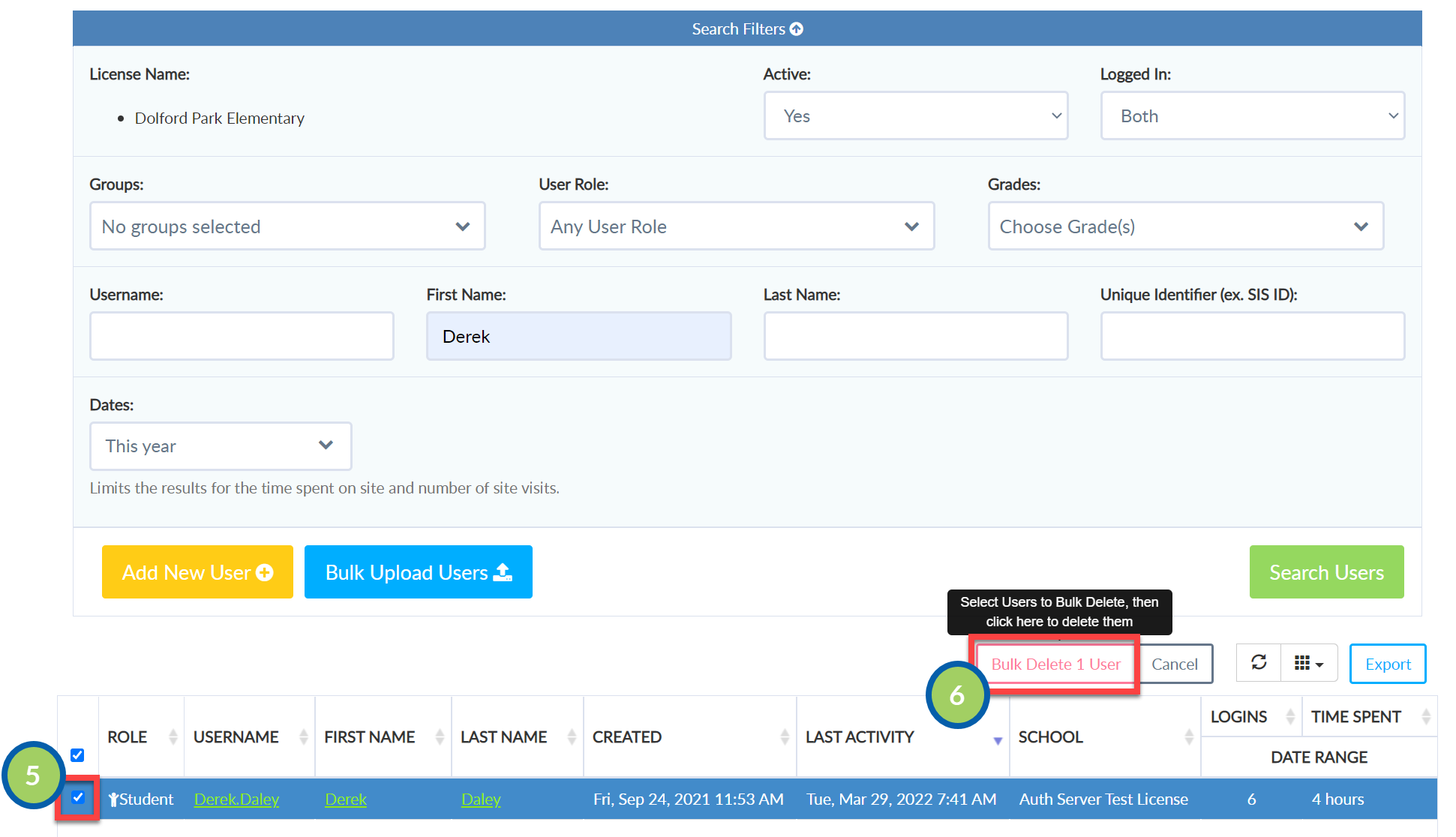
Select the checkbox to the left of the student(s) you want to remove.
Select the Bulk Delete User button.
NOTE: Once a user account has been deleted, you cannot recover their prior work.