Change the CCIS-EZ to Spanish
Written By Chelsie
Last updated 4 months ago
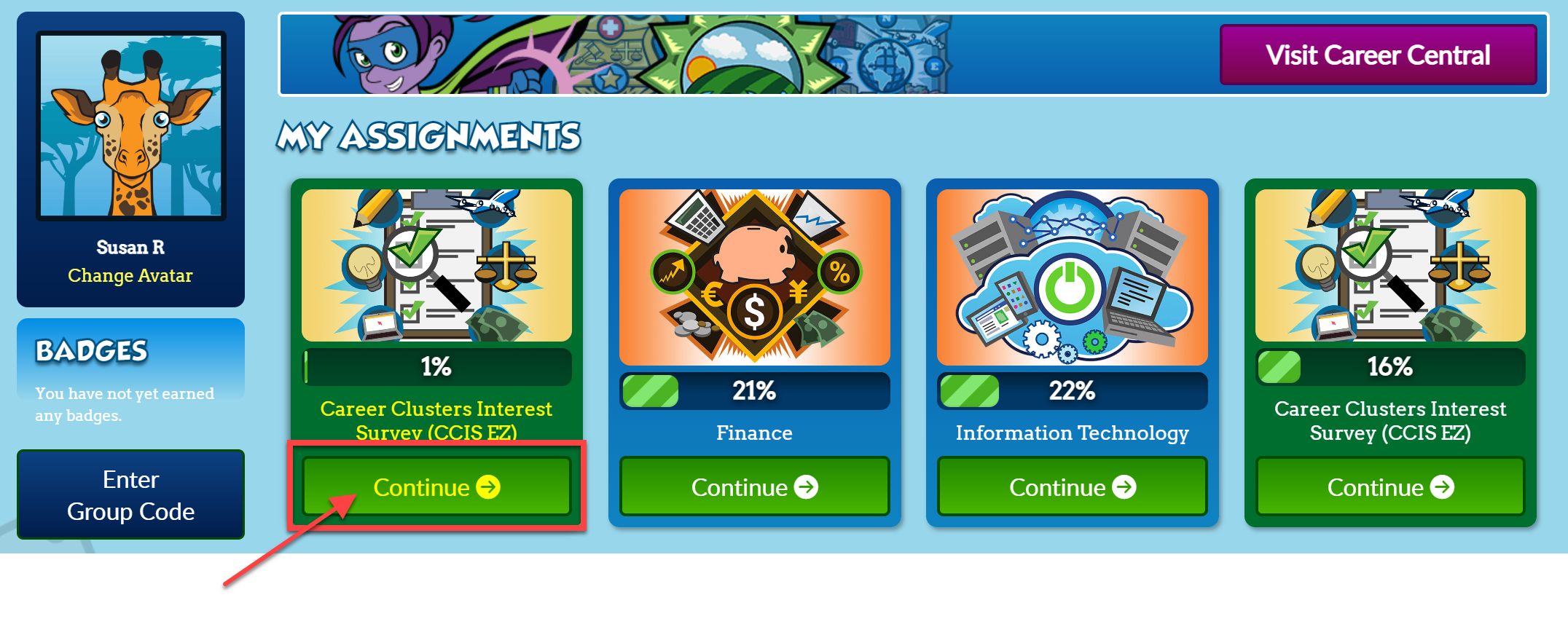
From the Student Dashboard, you will see My Assignments at the top.
Find the Assessment Assignment you need to complete.
Select Start if you are starting the assessment or Continue if you started in a previous session.
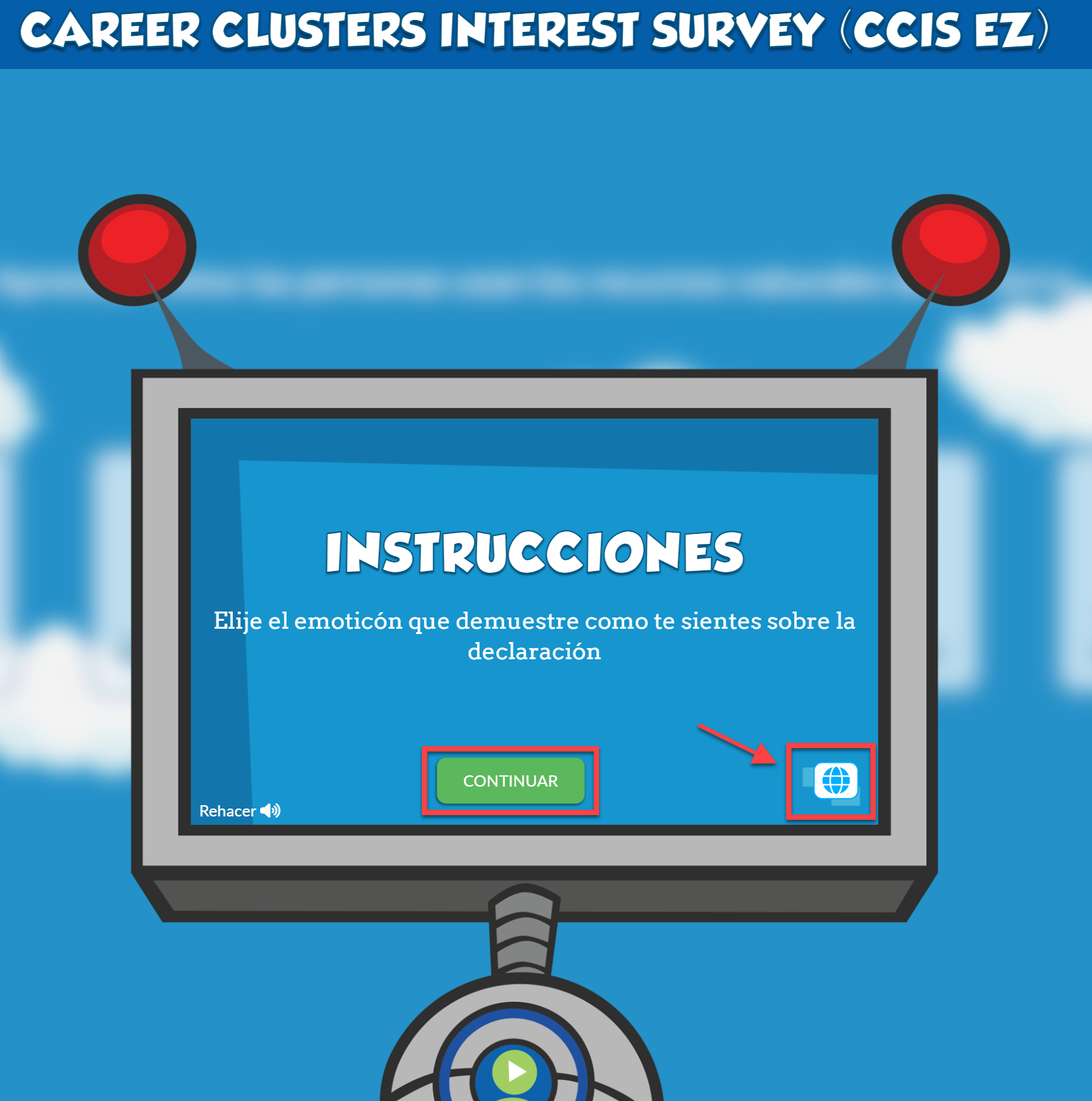
From the Directions page, you can change your language preference to Spanish.
Select the world icon on the bottom right.
The onscreen text and the read-aloud voice will change to Spanish.
Select the world icon to return to English.
Select Continue to start the CCIS-EZ Assessment.
Was this helpful?
Still need help? Ask the team